Your first mini game!
Learning to code with Pikle
WELCOME
Not made a game in Pikle yet? Try this simple space-survival game – with Evil Space FruitTM!
If you don’t want to follow the whole tutorial, feel free to jump straight to the full code listing. We’re not going to go through every line; instead we’ll pick out the highlights.
The gameplay
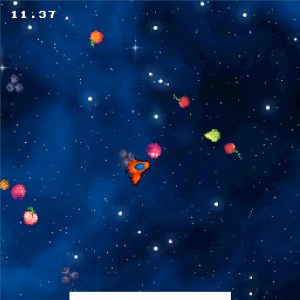
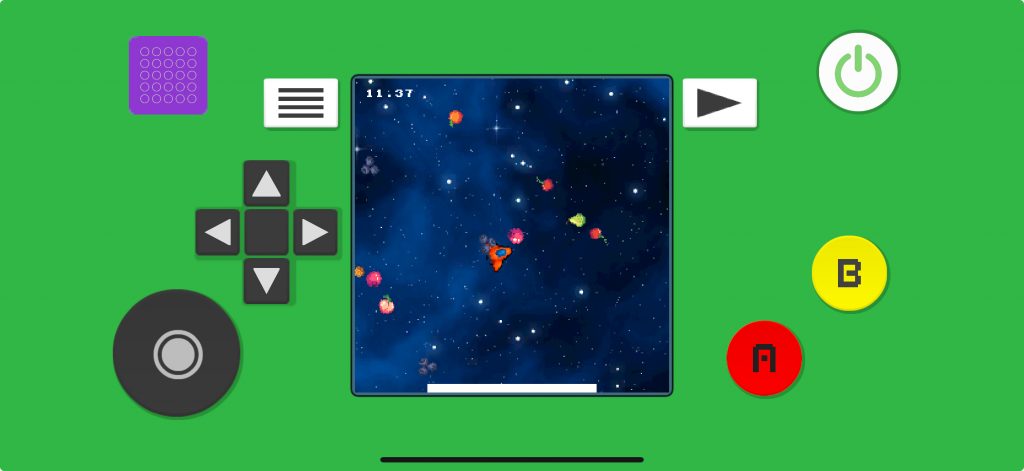
The player will fly their ship around the space fruit asteroids – collisions will deplete the player’s energy level. The fruity asteroids will keep spawning – last as long as you can!
PREREQUISITES
Before you follow this tutorial, you may want to check out Pikle Script Basics – it goes through the structure of a Pikle script.
TUTORIAL
To follow along we recommend you first copy the full code listing below into your Pikle Tool app.
Step 1. Gather some art assets from the Asset Browser
Pikle contains loads of built-in art and sound assets. You can browse these assets using the Asset Browser in Pikle Player (accessed from the Hub menu). To use the assets you find, simply note the bank number (at the bottom of the Asset Browser) and the asset number (under each individual asset in the preview window).
Asset locations for sprite images and a game over sound effect
-- Store our asset locations for later
BackgroundAsset = { 25, 7 }
PlayerShipAsset = { 36, 2 }
SpaceFruitAssets = { 28, 9, 16 }
GameOverSoundAsset = { 0, 16 }
Step 2. Define some properties to track the player and the asteroids
We define constants and variables the same way, we just started the names of constants with an uppercase letter, and variable names with a lowercase letter. This isn’t required – feel free to choose your own preferred naming convention.
Player sprite indices and physics properties
PlayerSprite = 1
PlayerEnergySprite = 2
PlayerRotationSpeed = 180
PlayerThrust = 200
PlayerMaxSpeed = 100
DegToRadians = math.pi / 180
Player variables for position, velocity, rotation, energy, etc.
playerX = 0
playerY = 0
playerVelocityX = 0
playerVelocityY = 0
playerRotation = 0
playerEnergy = 1.0
playerAlive = true
playerTime = 0
playerFlash = true
Some constants that define properties for the asteroids (space fruit!)
-- Asteroid info - max number, spawn rate etc.
AsteroidSpawnRate = 0.5
AsteroidMax = 30
AsteroidSpriteBase = 3
AsteroidSpawnRadius = 200
AsteroidCollisionRadiusSq = 24*24
AsteroidDamageRate = 0.15
Some variables to track the asteroids
asteroidSpawnCounter = 0
asteroidCount = 0
asteroids = {}
Step 3. Create a space background
When we have chosen a sprite asset, we can setup a sprite to display it. The asset chosen for the background happens to be the same size as the Pikle screen (256×256). To display it, all we have to do is set the sprite’s shape (image) and enable it.
Setup a sprite to show the space background
function setupBackground()
	Engine.SpriteEnable(0, true)
	Engine.SpriteShape(0, BackgroundAsset[1], BackgroundAsset[2])
end
Did you know about Pikle sprites?
Pikle can display up to 256 sprites. We access them through their index numbers 0 to 255. We’re going to use sprite 0 for the background. Sprites have the following properties and default values:
- Enable (true or false) defaults to false.
- Position defaults to (0,0,0). The Z value is used to sort sprites within a single sprite layer.
- Color defaults to white or RGBA (1,1,1,1)
- Scale defaults to normal size, or (1,1,1)
- Shape is an asset location and defaults to bank 0, asset 0. This can be viewed in the Asset Browser. it’s a square 🙂
Step 4. Setup player ship and implement flight controls
The player controls a space ship. The player can steer with the joystick or d-pad and apply forward thrust by pressing the A button.
The player sprite
First we need to setup the sprite for the player. The player space ship starts in the centre of the screen. We also create an energy bar – this is a white bar at the bottom of the screen. It will start the full width of the screen and then shrink to zero as the player gets damaged by asteroids.
Setup the player ship and energy bar
function setupPlayerShip()
	Engine.SpriteEnable(PlayerSprite, true)
	Engine.SpriteShape(PlayerSprite, PlayerShipAsset[1], PlayerShipAsset[2])
	Engine.SpriteEnable(PlayerEnergySprite, true)
	Engine.SpriteShape(PlayerEnergySprite, 0, 0)
	Engine.SpritePosition(PlayerEnergySprite, 0, -128, 0)
end
To update the player and simple flight physics, we need a function that will be called every game frame – roughly 30fps depending on the device. Refer to the function called updatePlayerShip() – we’ll just go through the highlights here.
Player input
There are 3 main functions for getting the state of the on-screen controls. GetJoyState, GetDPadState and GetButtonState.
- A, B, START – these are the basic digital buttons. They have the following states:
- isPressed – true if the button has only just been pressed
- isDown – true while the button is held
- isUp – true if the button is NOT being pressed
- JOY0 is the analog stick – it has x and y properties ranging from -1 to 1
- DPAD0 is the d-pad – it has button states called up, down, left and right – these buttons also have isPressed, isDown and isUp
Reading input from the on-screen Pikle controls
local jx = Engine.GetJoyState("JOY0").x
local dpad = Engine.GetDPadState("DPAD0")
local thrustButton = Engine.GetButtonState("A")
Simple flight physics
For the “fight model” we’re simply tracking the player’s velocity and position. Each frame we adjust the velocity using the thrust button input and apply the velocity to the position. We dampen the velocity so that the player doesn’t accelerate to infinite speed. The player position is wrapped so if they go off-screen, they are warped instantly to the other opposite screen edge.
Apply thrust, velocity and position
-- apply thrust to velocity of ship
playerVelocityX = playerVelocityX + thrustX * dt
playerVelocityY = playerVelocityY + thrustY * dt

-- apply velocity to move the player position
playerX = playerX + playerVelocityX * dt
playerY = playerY + playerVelocityY * dt

-- dampen the velocity so we slow down when not thrusting
playerVelocityX = damp(playerVelocityX, 0.9, dt)
playerVelocityY = damp(playerVelocityY, 0.9, dt)
Update the player sprite
Once we have calculated where the player should be and what orientation they are, we apply the changes to the player sprite.
Update the player sprite position and rotation
Engine.SpriteRotation(PlayerSprite, 0, 0, playerRotation)
Engine.SpritePosition(PlayerSprite, playerX, playerY, 0)
Step 5. Spawn and animate the asteroids
The asteroids are prebuilt – we setup the sprites with a random fruit image, position them around the edge of the play area in a circle and give them an initial velocity.
Creating the asteroid objects in a circle around the player
local newAsteroid = {
    active = false,
    x = cos * AsteroidSpawnRadius,
    y = sin * AsteroidSpawnRadius,
    velocityX = -cos * speed,
    velocityY = -sin * speed,
    spinRate = math.random(-90, 90),
    rotation = 0,
    sprite = spr
}
Spawning them becomes a simple process of activating the relevant sprite.
Spawn an asteroid by activating the next one in the list
function spawnAsteroid()
	asteroidCount = asteroidCount + 1
	asteroids[asteroidCount].active = true
	Engine.SpriteEnable(asteroids[asteroidCount].sprite, true)
end
Step 6. Check for collisions and deplete player energy
Once an asteroid sprite is active, we check for collision with the player using a simple distance check (for simplicity we assume all the asteroids are the same size). If an asteroid collides with the player ship, the player energy level is reduced.
Collision check using the distance between the player ship and the asteroid position (x,y)
function checkPlayerCollision(x, y, dt)
	local dx = playerX - x
	local dy = playerY - y
	local rSq = dx*dx + dy*dy

	if rSq < AsteroidCollisionRadiusSq then
		local damage = AsteroidDamageRate * dt
		playerEnergy = math.max(0, playerEnergy - damage)
		if playerEnergy <= 0 then
			onGameOver()
		end
	end
end
Every frame we update an energy bar sprite – we scale it across the screen – it gets smaller as the player energy level drops.
Display energy level by stretching a white sprite across the screen
function updatePlayerEnergyBar()
	Engine.SpriteScale(PlayerEnergySprite, playerEnergy*9, 0.5, 1)
end
Asteroid movement
The asteroids are continuously moving in one direction. They don’t change direction during their lifetime. And the asteroids are never removed. We simply apply the asteroid’s velocity to its position – same as with the player, except we never apply any acceleration. The velocity is multiplied by dt – the time since the last frame – this keeps the movement independent of the frame rate.
We also apply a spin to each asteroid and wrap their positions when they go beyond the screen edges.
Simple velocity calculation with wrapping position at screen edges
x = x + vx * dt
y = y + vy * dt
x = wrapCoord(x)
y = wrapCoord(y)
rot = rot + spinRate * dt
As with the player the asteroids are updated every frame.
Step 7. Game-over sound
The game is over when the player energy has been depleted to zero. When this happens we trigger an audio effect. Note how we pass the bank and asset numbers (second and third parameters) – similar to how we use sprite assets.
Trigger one-off sound on game over
Engine.AudioPlayOneShot(0, GameOverSoundAsset[1], GameOverSoundAsset[2])Step 8. Measure and display player’s survival time
We use the simple Pikle Text layer to display the player’s current time – the idea is to last for as long as possible. When the player has lost all energy, the timer is stopped and the game is over. To play again, re-upload the script.
Drawing order
By default, the text layer is drawn behind the sprite layer. To get the text on top of the sprites, we need to set an order number higher than the sprites – for this we use Engine.TextOrder(..) function.
Thank you for reading
More tutorials are coming soon!
SPACE FRUIT GAME – FULL CODE LISTING
-- Store our asset locations for later
BackgroundAsset = { 25, 7 }
PlayerShipAsset = { 36, 2 }
SpaceFruitAssets = { 28, 9, 16 }
GameOverSoundAsset = { 0, 16 }

-- Some info about the player that won't change (better than
-- having raw numbers spread about the code)
PlayerSprite = 1
PlayerEnergySprite = 2
PlayerRotationSpeed = 180
PlayerThrust = 200
PlayerMaxSpeed = 100
DegToRadians = math.pi / 180

playerX = 0
playerY = 0
playerVelocityX = 0
playerVelocityY = 0
playerRotation = 0
playerEnergy = 1.0
playerAlive = true
playerTime = 0
playerFlash = true

-- Asteroid info - max number, spawn rate etc.
AsteroidSpawnRate = 0.5
AsteroidMax = 30
AsteroidSpriteBase = 3
AsteroidSpawnRadius = 200
AsteroidCollisionRadiusSq = 24*24
AsteroidDamageRate = 0.15

-- Variable asteroid data
asteroidSpawnCounter = 0
asteroidCount = 0
asteroids = {}


function setupBackground()
	Engine.SpriteEnable(0, true)
	Engine.SpriteShape(0, BackgroundAsset[1], BackgroundAsset[2])
end

function setupPlayerShip()
	Engine.SpriteEnable(PlayerSprite, true)
	Engine.SpriteShape(PlayerSprite, PlayerShipAsset[1], PlayerShipAsset[2])
	Engine.SpriteEnable(PlayerEnergySprite, true)
	Engine.SpriteShape(PlayerEnergySprite, 0, 0)
	Engine.SpritePosition(PlayerEnergySprite, 0, -128, 0)
end

-- Basic exponential decay to zero (No overshoot)
function damp(source, lambda, dt)
    return source * math.exp(-lambda * dt)
end

function wrapCoord(x)
	if x < -128 then
	    x = 128
	elseif x > 128 then
	    x = -128
	end
	return x
end

function updatePlayerShip(dt)
	local thrustX = 0
	local thrustY = 0

	if playerAlive then
		playerTime = playerTime + dt
		Engine.Text(1, 1, string.format("%.2f", playerTime))

		local jx = Engine.GetJoyState("JOY0").x
		local dpad = Engine.GetDPadState("DPAD0")
		local thrustButton = Engine.GetButtonState("A")

		-- allow dpad directions to control steering too
		if dpad.left.isDown then
			jx = -1
		elseif dpad.right.isDown then
			jx = 1
		end

		-- rotate the player ship based on the joystick X (horizontal 	position)
		playerRotation = (playerRotation - jx * dt * PlayerRotationSpeed) % 360

		-- calculate thrust based on angle of ship
		if thrustButton.isDown then
			thrustX = -math.sin(playerRotation * DegToRadians) * 	PlayerThrust
			thrustY = math.cos(playerRotation * DegToRadians) * PlayerThrust
		end
	else
		Engine.SpriteEnable(PlayerSprite, playerFlash)
		playerFlash = not playerFlash
	end

	-- apply thrust to velocity of ship
	playerVelocityX = playerVelocityX + thrustX * dt
	playerVelocityY = playerVelocityY + thrustY * dt

	-- apply velocity to move the player position
	playerX = playerX + playerVelocityX * dt
	playerY = playerY + playerVelocityY * dt

	-- dampen the velocity so we slow down when not thrusting
	playerVelocityX = damp(playerVelocityX, 0.9, dt)
	playerVelocityY = damp(playerVelocityY, 0.9, dt)

	-- if the payer goes off the screen, wrap to the other side
	playerX = wrapCoord(playerX)
	playerY = wrapCoord(playerY)

	-- apply rotation and position to the sprite
	Engine.SpriteRotation(PlayerSprite, 0, 0, playerRotation)
	Engine.SpritePosition(PlayerSprite, playerX, playerY, 0)
end

function setupAsteroids()
	local spawnAngle = 0
	for i=1,AsteroidMax do
		-- setup all asteroid sprites with a random image
		local shape = math.random(SpaceFruitAssets[2], SpaceFruitAssets[3])
		local spr = AsteroidSpriteBase+i-1
		Engine.SpriteShape(spr, SpaceFruitAssets[1], shape)
		-- setup spawn position, velocity and rotation
		local cos = math.cos(spawnAngle)
		local sin = math.sin(spawnAngle)
		local speed = 50 + math.random(0, 100)
		local newAsteroid = {
		    active = false,
		    x = cos * AsteroidSpawnRadius,
		    y = sin * AsteroidSpawnRadius,
		    velocityX = -cos * speed,
		    velocityY = -sin * speed,
		    spinRate = math.random(-90, 90),
		    rotation = 0,
		    sprite = spr
		}
		asteroids[i] = newAsteroid
		spawnAngle = spawnAngle + 20*DegToRadians
	end
end

function spawnAsteroid()
	asteroidCount = asteroidCount + 1
	asteroids[asteroidCount].active = true
	Engine.SpriteEnable(asteroids[asteroidCount].sprite, true)
end

function onGameOver()
	playerAlive = false
	Engine.AudioPlayOneShot(0, GameOverSoundAsset[1], GameOverSoundAsset[2])
end

function checkPlayerCollision(x, y, dt)
	local dx = playerX - x
	local dy = playerY - y
	local rSq = dx*dx + dy*dy

	if rSq < AsteroidCollisionRadiusSq then
		local damage = AsteroidDamageRate * dt
		playerEnergy = math.max(0, playerEnergy - damage)
		if playerEnergy <= 0 then
			onGameOver()
		end
	end
end

function moveAsteroid(asteroid, dt)
	local x = asteroid.x
	local y = asteroid.y
	local vx = asteroid.velocityX
	local vy = asteroid.velocityY
	local spinRate = asteroid.spinRate
	local rot = asteroid.rotation
	local spr = asteroid.sprite

	x = x + vx * dt
	y = y + vy * dt
	x = wrapCoord(x)
	y = wrapCoord(y)
	rot = rot + spinRate * dt

	asteroid.x = x
	asteroid.y = y
	asteroid.rotation = rot

	Engine.SpritePosition(spr, x, y, 0)
	Engine.SpriteRotation(spr, 0, 0, rot)

	if playerAlive then
		checkPlayerCollision(x, y, dt)
	end
end


function updateAsteroids(dt)
	-- spawn one or more asteroids (accumulate counter over time to track
	-- how many we should spawn in this update)
	if asteroidCount < AsteroidMax then
		asteroidSpawnCounter = asteroidSpawnCounter + dt
		while asteroidSpawnCounter >= 1 do
			asteroidSpawnCounter = asteroidSpawnCounter - 1
			spawnAsteroid()
		end
	end

	for i=1,#asteroids do
		if asteroids[i].active then
			moveAsteroid(asteroids[i], dt)
		end
	end
end

function updatePlayerEnergyBar()
	Engine.SpriteScale(PlayerEnergySprite, playerEnergy*9, 0.5, 1)
end

function init()
	Engine.TextOrder(256)
	setupBackground()
	setupPlayerShip()
	setupAsteroids()
end

function update()
	local dt = Engine.TimeStep()
	updatePlayerShip(dt)
	updateAsteroids(dt)
	updatePlayerEnergyBar()
end